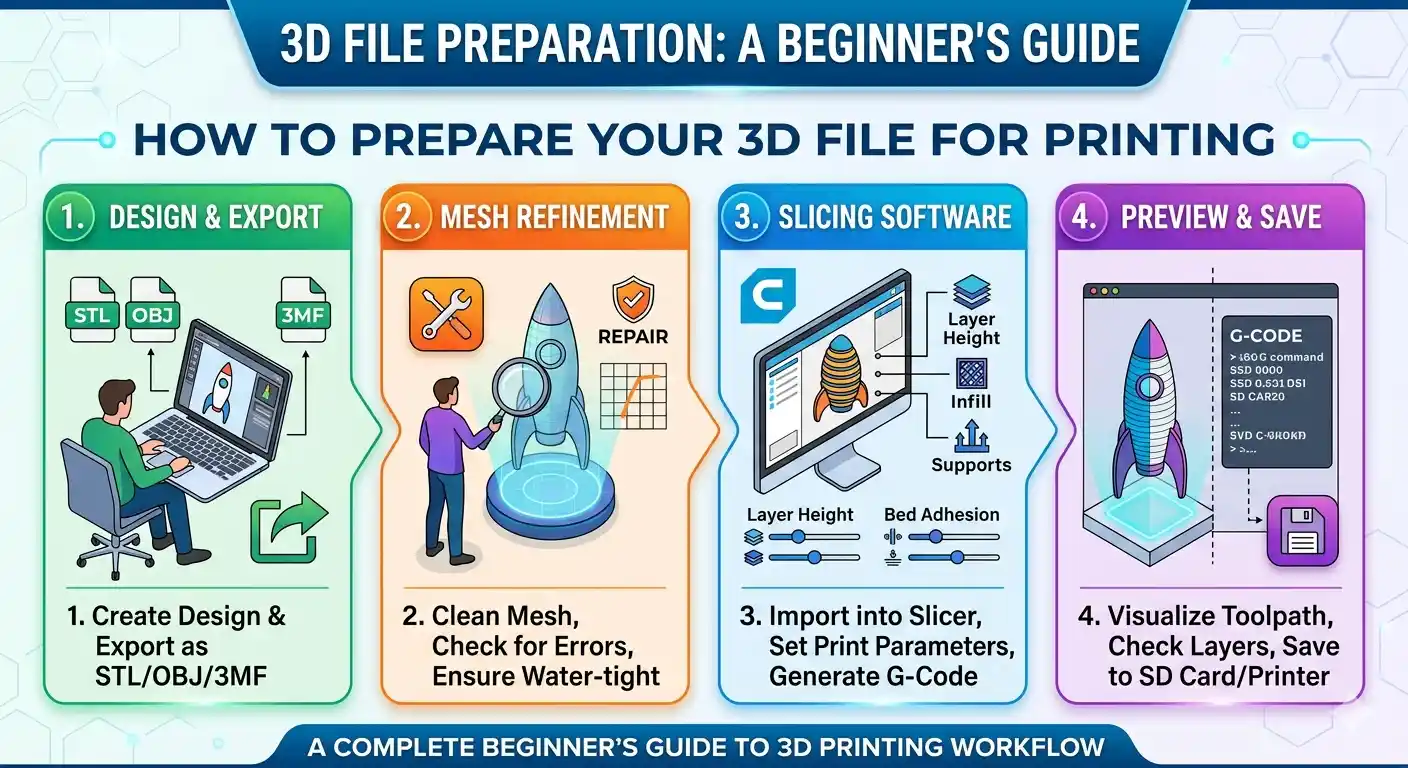
You've spent hours designing your model. The last thing you want is for it to come out wrong because of a simple file preparation mistake. Here's exactly what to do before you send your file to us.
Step 1 — Use the Right Software
If you're just starting out, Tinkercad is completely free, runs in your browser, and is powerful enough for most student and hobbyist projects. For more advanced engineering work, Fusion 360 is free for students and startups and is what most professionals use. For organic and artistic shapes, Blender is the industry standard. All three can export files that we print without any issues.
Step 2 — Export as STL or STEP
STL is the most universal 3D printing format. Every software mentioned above can export it. Go to File, then Export, then select STL. If your software supports STEP export, use that instead — STEP files preserve more geometry data and result in slightly cleaner prints for complex curved surfaces.
We also accept OBJ, 3MF, DXF, and DWG files. If you have a format not listed here, just WhatsApp us, and we'll sort it out.
Step 3 — Check Your Scale Before Exporting
This is the single most common mistake we see. A model designed in millimetres but exported in centimetres will print 10 times larger than intended. Always confirm your units inside your software before exporting. If you're unsure, include a note when you send the file — tell us the exact dimensions you want, and we'll verify everything before printing.
Step 4 — Check for Errors in Your Model
3D models can have invisible errors called non-manifold edges, holes in the mesh, or flipped normals. These don't show up on screen but can cause print failures. Download Microsoft 3D Builder for free on Windows and open your STL file in it. It will automatically detect and repair most errors with a single click. For Mac users, Meshmixer is a free alternative that does the same thing.
Step 5 — Think About Print Orientation
The direction your model is printed affects its strength and surface quality. Layers bond strongly horizontally but are weaker vertically. So a horizontal beam printed lying flat is much stronger than the same beam printed standing upright. If your part has a critical load-bearing direction, mention it when ordering, and our team will orient it correctly.
Step 6 — Send It to Us
Upload your file directly to flux3d.vercel.app or send it on WhatsApp to +91 96230 23480. For standard prints you'll get a quote in 2 minutes. For custom or complex orders, we'll respond within 2 hours with a detailed quote including material recommendation, timeline, and total cost with GST.
Flux 3D Team